
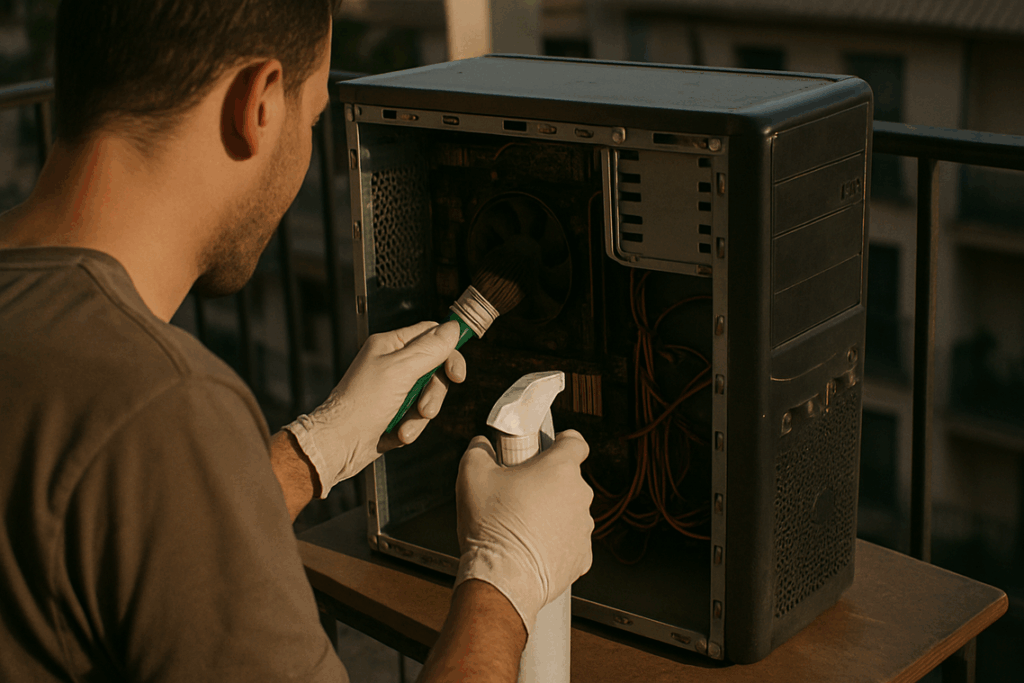
If your character keeps moving on its own or your aim drifts without touching the controller, you’re here for one reason: you need reliable thumbstick drift fixes that actually work. Stick drift is one of the most frustrating issues gamers face, whether you’re playing competitive shooters, open-world RPGs, or fast-paced sports titles. It disrupts precision, ruins immersion, and can cost you matches.
In this guide, we’ll break down what causes stick drift, how to diagnose it properly, and the most effective solutions—from quick calibration tweaks to deeper hardware fixes. We’ll also cover when a repair makes sense versus when it’s time for a replacement.
Our insights are based on hands-on controller testing, performance optimization research, and real-world multiplayer gameplay scenarios. That means no guesswork—just practical, proven steps to restore accuracy and get your gameplay back under control.
The Ghost in the Controller: What Actually Causes Stick Drift?
To better understand how to combat thumbstick drift and keep your gaming experience smooth, let’s also explore some of the latest advancements in gaming technology in our article, “What Is New In Gaming Technology Jogametech.
So what’s really behind that slow, spooky camera crawl? Let’s compare the main culprits side by side.
-
Mechanical Wear and Tear (Hardware Issue)
At the heart of your controller sits a potentiometer—a small sensor that measures stick position by tracking electrical resistance. Over time, its internal contact pads grind down (yes, even from casual Mario Kart sessions). The result? “Dead zones,” or worse, phantom inputs. Some argue modern controllers are built to last—but physics disagrees. Friction always wins eventually. -
Debris and Contamination (Environmental Issue)
Meanwhile, dust, crumbs, and skin particles sneak inside. These tiny invaders physically block sensors, causing misreads. Think of it like sand in a gear system. Pro tip: storing controllers in closed spaces reduces buildup. -
Software and Firmware Glitches (Digital Issue)
On the other hand, not all drift is mechanical. Corrupted calibration data can mimic hardware failure. In these cases, recalibration or targeted thumbstick drift fixes may solve the issue—no screwdriver required.
First Line of Defense: Software Fixes and Recalibration
Before you crack open a controller or order replacement parts, start with software. In most repair shops from Seattle LAN cafés to Tokyo esports arenas, recalibration is always step one (because sometimes the “hardware failure” is just a confused sensor).
Console-Level Recalibration
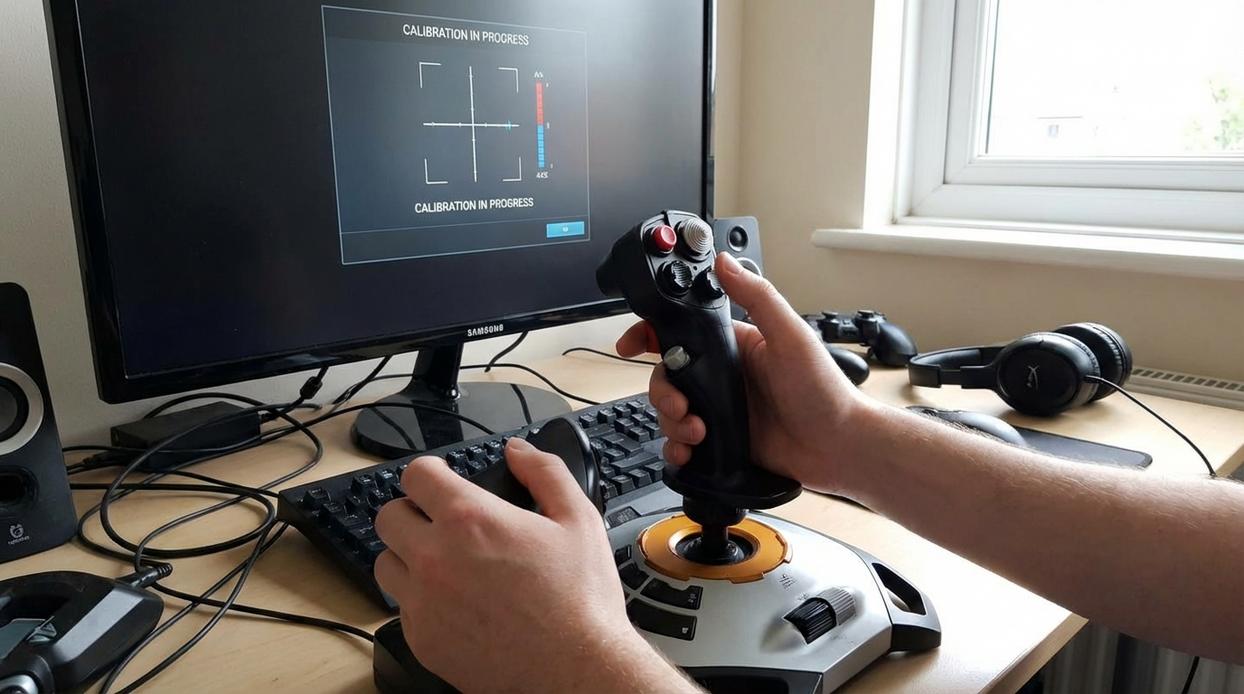
Nintendo Switch: Go to System Settings > Controllers and Sensors > Calibrate Control Sticks. Follow the on-screen prompts and rotate the stick fully. If the crosshair doesn’t center, recalibration can often snap it back.
PlayStation (PS4/PS5): While Sony lacks a dedicated calibration menu, resetting helps. Use a paperclip to press the back reset button for five seconds, then reconnect via USB and power on.
Xbox: Update and test via Settings > Devices & Connections > Accessories. Use the built-in test screen to confirm centering.
PC/Steam: Open Steam > Settings > Controller > Calibration & Advanced Settings. Steam’s input API lets you fine-tune response curves—hugely useful for competitive players.
Adjusting Deadzone Settings
A deadzone is the neutral area where slight stick movement registers no input. Increasing it creates a buffer that masks minor drift. Games like Call of Duty and Apex Legends offer granular deadzone sliders—raise it slightly until unintended movement stops. (Pro tip: increase in small increments to avoid sluggish aim.)
Controller Firmware Updates
Manufacturers periodically release firmware patches addressing sensor misreads. Check accessory settings on your console or the Xbox Accessories/PlayStation Accessories app to update.
Power Cycling and Re-Pairing
Finally, fully power down both controller and console, then re-pair. This clears temporary signal glitches—often the simplest of all thumbstick drift fixes.
Getting Your Hands Dirty: Safe Hardware Cleaning Methods
Cleaning a controller isn’t complicated, but it does require the right tools and a careful approach. Before you start, gather the essentials: a can of compressed air, high-percentage isopropyl alcohol (90%+), cotton swabs, and an optional plastic prying tool. Isopropyl alcohol is a fast-evaporating cleaning liquid that removes grime without harming internal electronics when used correctly.
The Compressed Air Method
Compressed air works by forcing debris out of tight spaces using short bursts of pressurized gas. Gently push the thumbstick to one side. Aim the straw nozzle at the base of the mechanism and use quick, controlled bursts. Rotate the stick and repeat in every direction. This helps loosen dust and particles hiding inside the thumbstick housing (the circular cavity beneath the stick cap).
Some gamers argue compressed air just pushes dirt deeper. That can happen if you spray too long. Short bursts prevent that and dislodge debris effectively.
The Isopropyl Alcohol Method
Dampen—don’t soak—a cotton swab with alcohol. Carefully clean around the ball-and-socket joint of the thumbstick. The alcohol breaks down oils and sticky residue, then evaporates quickly. Never pour liquid directly into the controller.
Important Safety Warning
Turn off and fully disconnect the controller first. Liquids and powered circuits don’t mix (and that’s a boss battle you won’t win).
Regular cleaning supports long-term performance and complements proper settings like adjusting controller sensitivity for competitive accuracy. While not all thumbstick drift fixes require disassembly, routine maintenance prevents buildup that contributes to erratic movement.
The Final Boss: Advanced Repairs for Persistent Drift
Disclaimer: The steps below require opening your controller. This will void your warranty and carries a real risk of permanent damage. Attempt this only if you’ve exhausted all other thumbstick drift fixes and are comfortable working with delicate electronics.
Potentiometer Cleaning or Replacement
First, power off and carefully disassemble the controller using the correct precision screwdrivers. Once inside, locate the thumbstick module. Attached to it are small components called potentiometers (variable resistors that measure stick movement).
Next, gently pry open the green housing on the affected potentiometer. Use compressed air or isopropyl alcohol (90%+) on a cotton swab to clean internal contacts. Reassemble and test.
If drift persists, advanced users can desolder and replace the potentiometer entirely. This requires a soldering iron, steady hands, and patience (think watchmaker, not speedrunner).
When to Call It Quits
However, if circuit boards are scratched, pads are lifted, or replacement fails, it’s time to invest in a new controller.
Take Control of Your Gameplay Today
You came here looking for real solutions to controller frustration — especially the kind that ruins aim, movement, and competitive performance. Now you understand what causes stick issues, how calibration and setup adjustments help, and when it’s time to repair or replace worn components.
Controller problems don’t just cost you matches — they cost you confidence. Ignoring drift, dead zones, or poor sensitivity tuning only makes gameplay more inconsistent and frustrating over time. The good news? You now have practical, proven strategies to apply immediately, including reliable thumbstick drift fixes that restore precision and control.
Your next move is simple: optimize your settings, test your calibration, and apply the fixes outlined above before your next session. If you’re serious about smoother mechanics and competitive consistency, explore more advanced setup guides and multiplayer optimization strategies trusted by thousands of dedicated players.
Stop fighting your controller. Fix the issue, fine-tune your setup, and get back to playing at your best.
 Ask Donald Symondslaber how they got into console gaming trends and insights and you'll probably get a longer answer than you expected. The short version: Donald started doing it, got genuinely hooked, and at some point realized they had accumulated enough hard-won knowledge that it would be a waste not to share it. So they started writing.
What makes Donald worth reading is that they skips the obvious stuff. Nobody needs another surface-level take on Console Gaming Trends and Insights, Pro Tips Collection, Multiplayer Strategy Breakdowns. What readers actually want is the nuance — the part that only becomes clear after you've made a few mistakes and figured out why. That's the territory Donald operates in. The writing is direct, occasionally blunt, and always built around what's actually true rather than what sounds good in an article. They has little patience for filler, which means they's pieces tend to be denser with real information than the average post on the same subject.
Donald doesn't write to impress anyone. They writes because they has things to say that they genuinely thinks people should hear. That motivation — basic as it sounds — produces something noticeably different from content written for clicks or word count. Readers pick up on it. The comments on Donald's work tend to reflect that.
Ask Donald Symondslaber how they got into console gaming trends and insights and you'll probably get a longer answer than you expected. The short version: Donald started doing it, got genuinely hooked, and at some point realized they had accumulated enough hard-won knowledge that it would be a waste not to share it. So they started writing.
What makes Donald worth reading is that they skips the obvious stuff. Nobody needs another surface-level take on Console Gaming Trends and Insights, Pro Tips Collection, Multiplayer Strategy Breakdowns. What readers actually want is the nuance — the part that only becomes clear after you've made a few mistakes and figured out why. That's the territory Donald operates in. The writing is direct, occasionally blunt, and always built around what's actually true rather than what sounds good in an article. They has little patience for filler, which means they's pieces tend to be denser with real information than the average post on the same subject.
Donald doesn't write to impress anyone. They writes because they has things to say that they genuinely thinks people should hear. That motivation — basic as it sounds — produces something noticeably different from content written for clicks or word count. Readers pick up on it. The comments on Donald's work tend to reflect that.