If you’re trying to decide between performance vs quality mode in your favorite game, you’re not alone. Players everywhere are asking the same question: should you prioritize smoother frame rates or sharper visuals? The answer isn’t always obvious—and it can dramatically impact how your game feels, looks, and performs.
This article breaks down exactly what performance vs quality mode means, how each setting affects frame rate, resolution, input responsiveness, and overall gameplay experience, and which option makes the most sense for different types of games. Whether you’re into competitive multiplayer, immersive single-player adventures, or fast-paced action titles, you’ll learn how to optimize your setup for the best possible results.
Our insights are based on hands-on testing across multiple consoles and game genres, along with analysis of real in-game performance metrics. By the end, you’ll know exactly which mode to choose—and why it matters for your specific playstyle.
Finding the right balance between frames and fidelity can feel like choosing between speed and spectacle. Performance means higher framerate (frames rendered per second) and lower input lag, while quality refers to visual fidelity like textures and lighting. Push settings too high, and you risk stutter; drop them too low, and the world looks washed out.
However, guides stop at advice. For controller-focused players, responsiveness matters because analog inputs rely on timing. In fighting games or shooters, a single delayed frame can ruin a combo (think missing that last hit in Street Fighter).
So, start by testing performance vs quality mode on your hardware. Then, lower shadows and post-processing first—they tax GPUs. Pro tip: cap your framerate to improve stability.
Some argue visuals boost immersion; clarity wins.
Core Concepts: Decoding Performance and Quality
What is Performance?
Performance is how smoothly your game runs.
• FPS (Frames Per Second): How many images your system shows each second. 60 FPS means 60 images per second—the gold standard for fluid stick control (anything lower can feel like steering through syrup).
• Refresh Rate (Hz): How often your display updates per second.
• Input Lag: The delay between moving your stick and seeing action on screen.
Many competitors stop at definitions. Here’s the edge: competitive stick mechanics rely on frame-time consistency—not just high FPS. Stable 60 FPS beats unstable 90 FPS every time (ask any fighting game veteran).
What is Quality?
Quality shapes how the game looks:
• Resolution: 1080p, 1440p, 4K clarity
• Texture Quality: Sharp armor vs. muddy blur
• Anti-aliasing: Smoother edges
• Ray Tracing: Realistic lighting and reflections
The Fundamental Trade-Off
Your hardware has a limited performance budget. Boosting visuals “spends” resources and can reduce FPS. Choosing performance vs quality mode means deciding: sharper reflections or sharper reactions?
Maximizing Performance: Settings That Boost Your FPS
If you want smoother gameplay, start with the settings that actually move the needle. Not the flashy ones. The impactful ones.
Resolution Scaling
Resolution is the single biggest FPS lever. Dropping from 4K (3840×2160) to 1440p (2560×1440) reduces the number of pixels your system renders by over 40% (NVIDIA performance guidelines). That’s a massive workload reduction. On a 27-inch monitor, most players barely notice the difference in sharpness during fast motion (because your eyes are tracking movement, not counting pixels).
Recommendation: If you’re struggling to stay above 60 or 120 FPS, lower resolution first. It delivers the biggest return with the smallest visual sacrifice.
Shadow Quality
Shadows are performance hogs. “Ultra” often increases shadow resolution and draw distance—nice for screenshots, brutal for frames. The jump from Ultra to High or Medium usually frees up 5–15% performance depending on the engine (Digital Foundry analysis).
Pro tip: Set shadows to High for story games and Medium for competitive matches.
Reflections and Volumetric Effects
Screen Space Reflections (SSR) simulate reflections using on-screen data. Volumetric Fog calculates light scattering through particles. Both are computationally heavy.
For competitive play, lower or disable:
- Screen Space Reflections
- Volumetric Fog
- Volumetric Lighting
These settings look cinematic (very “next-gen trailer energy”), but they cost precious milliseconds.
Stick-Based Advantage
A stable, high framerate means consistent input response. With an analog stick, micro-adjustments rely on predictable frame timing. Frame drops equal aim inconsistency.
If your game offers performance vs quality mode, choose performance. Every time.
For more on console optimization trends, see the evolution of console exclusives and their market impact.
Enhancing Quality: Settings for Visual Immersion
Texture Quality
First, let’s talk about Texture Quality—this controls how sharp and detailed surfaces look. Brick walls, character armor, muddy roads—all of that clarity comes from texture resolution. Higher settings rely heavily on VRAM (Video Random Access Memory, the memory on your graphics card).
If you have 6–8GB of VRAM or more, set textures to High. In most modern games, this delivers crisp visuals without a noticeable FPS drop. For example, if your game runs at 90 FPS on Medium, switching to High textures might only drop you to 85 (barely noticeable). However, if you see stuttering, that’s often a VRAM bottleneck—dial it back one notch.
Anti-Aliasing (AA)
Next, Anti-Aliasing (AA) smooths out jagged edges on objects—those stair-step lines on rooftops or weapons. Two common types are TAA (Temporal Anti-Aliasing) and MSAA (Multisample Anti-Aliasing).
TAA blends frames over time, offering solid smoothing with moderate performance cost. MSAA is sharper but heavier on your GPU. For most players, TAA is the sweet spot. If you’re unsure, switch between them in a static scene and watch thin objects like fences.
Anisotropic Filtering
Now here’s the easy win: Anisotropic Filtering sharpens textures viewed at an angle—like a road stretching into the distance. It’s a low-cost setting, so set it to 16x almost always. The performance hit is tiny, but the clarity boost is obvious.
Ray Tracing
Finally, Ray Tracing simulates realistic lighting and reflections (think movie-level shine on puddles). It looks incredible—but it’s demanding. Use it for cinematic, single-player sessions where FPS matters less than immersion. If your system struggles, toggle between performance vs quality mode and compare frame stability before committing.
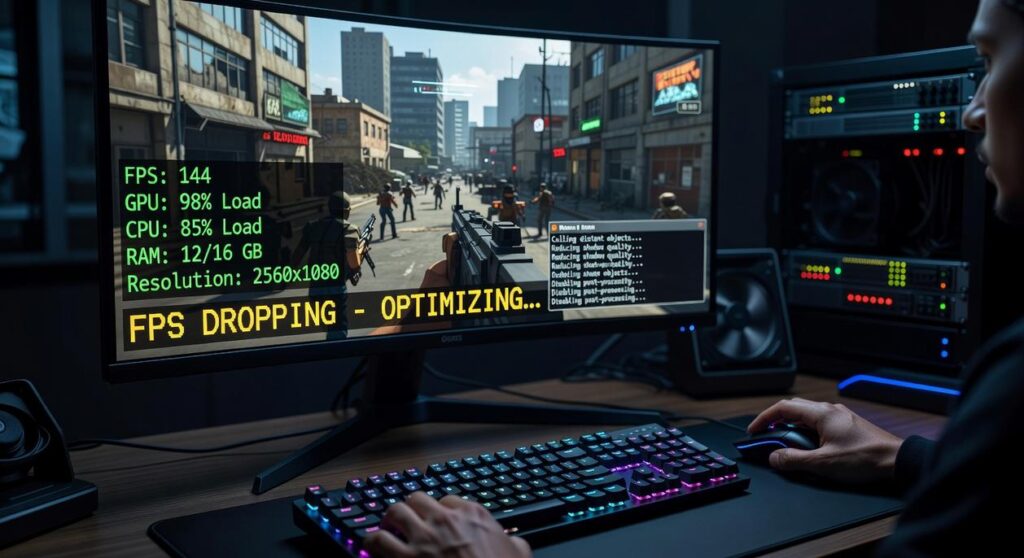
Stop cycling through presets and hoping the lag disappears. Frame drops and stutter feel random, but they’re usually tied to specific settings you can control. Once you understand the trade-off between visuals and speed, the guesswork fades. Start with high-impact options like resolution, shadow quality, and post-processing effects; these directly influence GPU load and frame time consistency.
Next, switch between performance vs quality mode and note how each affects sharpness, lighting detail, and responsiveness. Then use your game’s built-in benchmark or a low-stakes training mode. Change one setting at a time, watch the FPS counter, and evaluate the difference.
In the end, a tuned setup delivers smoother inputs, clearer motion, and a competitive edge that feels almost unfair (in a good way) every single match.
As you weigh the advantages of Performance Modes versus Quality Modes for an optimized gaming experience, don’t miss our latest insights in “Jogametech Gaming New From Javaobjects” to ensure you make the most informed choice.
Level Up Your Setup Today
You came here to finally understand how to get the best experience out of your gaming setup — especially when choosing between performance vs quality mode. Now you know how each option impacts frame rates, visuals, responsiveness, and overall gameplay feel.
If you’ve been frustrated by lag, blurry graphics, or inconsistent multiplayer performance, the issue isn’t your skill — it’s your optimization. Dialing in the right settings and fine-tuning your setup is what separates casual play from a smooth, competitive edge.
Now it’s time to act. Adjust your in-game settings, test your display configuration, and optimize your controller response so your system works for you — not against you. Thousands of gamers rely on our proven setup strategies and optimization tips to boost performance and dominate online matches.
Don’t let poor settings hold you back. Upgrade your setup, refine your strategy, and start playing at the level you know you’re capable of today.
 There is a specific skill involved in explaining something clearly — one that is completely separate from actually knowing the subject. Terry Colemoniero has both. They has spent years working with multiplayer strategy breakdowns in a hands-on capacity, and an equal amount of time figuring out how to translate that experience into writing that people with different backgrounds can actually absorb and use.
Terry tends to approach complex subjects — Multiplayer Strategy Breakdowns, Gaming Setup Optimization Tips, Pro Tips Collection being good examples — by starting with what the reader already knows, then building outward from there rather than dropping them in the deep end. It sounds like a small thing. In practice it makes a significant difference in whether someone finishes the article or abandons it halfway through. They is also good at knowing when to stop — a surprisingly underrated skill. Some writers bury useful information under so many caveats and qualifications that the point disappears. Terry knows where the point is and gets there without too many detours.
The practical effect of all this is that people who read Terry's work tend to come away actually capable of doing something with it. Not just vaguely informed — actually capable. For a writer working in multiplayer strategy breakdowns, that is probably the best possible outcome, and it's the standard Terry holds they's own work to.
There is a specific skill involved in explaining something clearly — one that is completely separate from actually knowing the subject. Terry Colemoniero has both. They has spent years working with multiplayer strategy breakdowns in a hands-on capacity, and an equal amount of time figuring out how to translate that experience into writing that people with different backgrounds can actually absorb and use.
Terry tends to approach complex subjects — Multiplayer Strategy Breakdowns, Gaming Setup Optimization Tips, Pro Tips Collection being good examples — by starting with what the reader already knows, then building outward from there rather than dropping them in the deep end. It sounds like a small thing. In practice it makes a significant difference in whether someone finishes the article or abandons it halfway through. They is also good at knowing when to stop — a surprisingly underrated skill. Some writers bury useful information under so many caveats and qualifications that the point disappears. Terry knows where the point is and gets there without too many detours.
The practical effect of all this is that people who read Terry's work tend to come away actually capable of doing something with it. Not just vaguely informed — actually capable. For a writer working in multiplayer strategy breakdowns, that is probably the best possible outcome, and it's the standard Terry holds they's own work to.