
Staying competitive in today’s gaming landscape means more than just quick reflexes—it requires the right setup, the right strategies, and a deep understanding of how your gear impacts performance. Whether you’re exploring the latest console trends, fine-tuning your controller configuration, or mastering multiplayer tactics, having accurate, up-to-date insights can make the difference between winning and falling behind.
This article is designed to help you navigate the hottest topics in gaming, from stick-based controller mechanics to practical setup optimization tips that improve responsiveness and consistency. If you’re searching for ways to gain an edge—especially through reducing input lag and enhancing overall control—you’re in the right place.
Our content is built on hands-on testing, gameplay analysis, and continuous monitoring of industry developments, ensuring you get reliable, actionable guidance. By the end, you’ll have a clearer understanding of current trends and concrete steps to elevate your gaming performance.
Your Controller: The First Link in the Latency Chain
Your controller is the first stop between your brain and the game. If there’s delay here, everything downstream suffers.
Wired vs. Wireless
Modern wireless controllers are impressively fast. Some use 2.4GHz connections with latency so low most players won’t notice. Still, wired remains the gold standard. Why? No signal interference, no battery fluctuations, and more consistent polling. Think of it like streaming on Ethernet instead of Wi‑Fi (less drama, more stability). If you’re serious about reducing input lag, plug in.
Polling Rate Explained
Polling rate, measured in Hz, tells you how often your controller reports inputs per second. 125Hz means 125 updates per second; 1000Hz means 1000. Higher is better because the console or PC receives your actions sooner.
To check on PC:
- Use controller testing software
- Enable high-performance USB mode if available
- Update firmware
(Pro tip: Some controllers default to lower polling rates to save power.)
Stick-Based Mechanics
Deadzones define how far you move the stick before input registers. Lower deadzones feel snappier—but too low causes drift. Increase sensitivity gradually and test in a practice range.
Controller Maintenance
Worn analog modules create inconsistent signals and even micro-delays. If your aim feels “muddy,” it might be hardware, not skill. Replace aging sticks before blaming your reflexes.
Tuning Your Machine: Console and PC System-Level Fixes
Before you blame your controller, compare your system settings side by side. On PS5 and Xbox Series X/S, Performance Mode vs. Quality/Fidelity Mode is the first fork in the road. Performance Mode prioritizes frame rate (how many frames your screen displays per second), while Quality Mode boosts resolution and visual effects. Higher frame rate = faster on-screen feedback. In contrast, prettier lighting often means slower responsiveness. If you play competitive shooters or fighters, Performance Mode wins almost every time. Yes, the shadows may look less cinematic—but you’re here to win, not admire ray-traced puddles.
On PC, the same A vs. B logic applies. Updated GPU drivers vs. outdated drivers can mean measurable frame-time improvements (NVIDIA and AMD regularly document performance gains in release notes). Likewise, Exclusive Fullscreen vs. Borderless Windowed matters. Exclusive Fullscreen gives the game direct control over display output, typically lowering latency compared to borderless, which routes through the desktop compositor.
Then there’s V-Sync vs. adaptive sync. Traditional V-Sync removes screen tearing but can add noticeable delay because frames wait for the monitor’s refresh cycle. G-Sync and FreeSync dynamically match refresh rates, offering smoother visuals with less penalty. Alternatively, an in-game frame limiter can stabilize performance without the same delay cost.
Finally, check Balanced vs. High Performance power plans in Windows. Balanced may throttle CPU speeds under load, introducing system-wide latency. High Performance keeps clocks consistent—crucial for reducing input lag.
Some argue visuals matter more than milliseconds. Fair. But in competitive play, responsiveness beats eye candy every round.
The Biggest Offender: Your TV and Monitor Settings
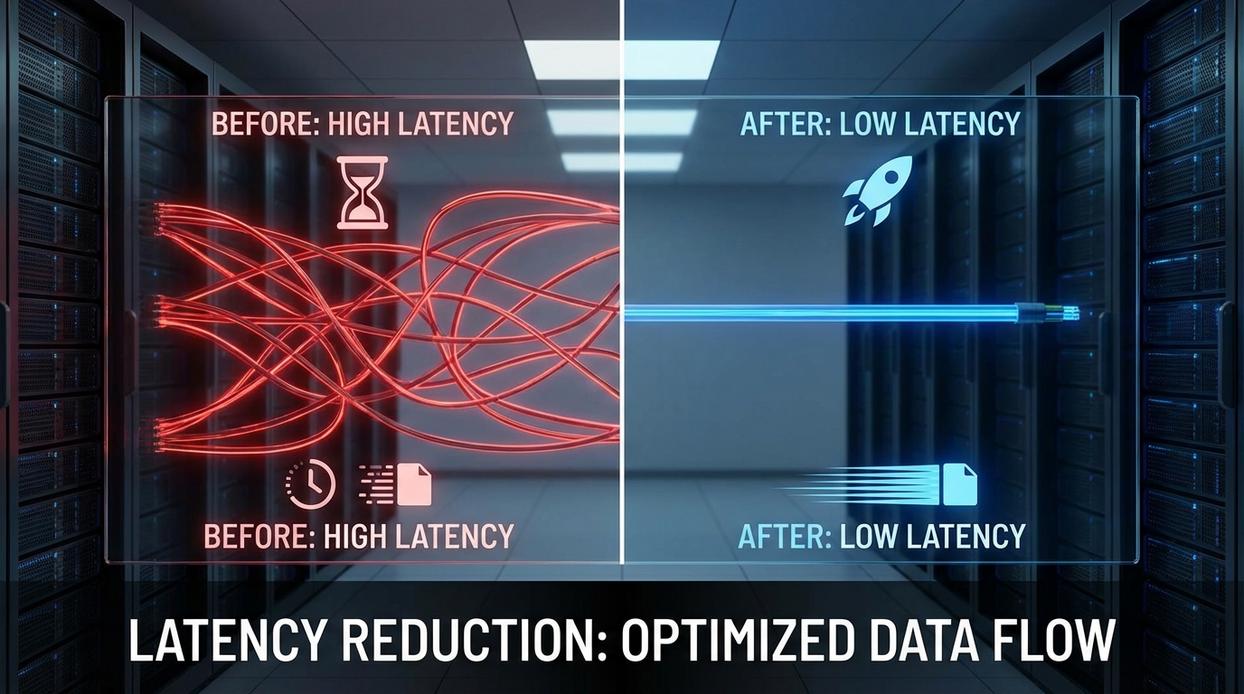
Let’s start with the uncomfortable truth: your display is probably sabotaging your gameplay.
Activating “Game Mode”
First and foremost, turn on Game Mode. This setting disables post-processing effects like motion smoothing, dynamic contrast, and noise reduction. These features are designed for movies—not for clutch moments in ranked matches. They add signal processing delay (the time your TV spends “enhancing” the image before showing it). That delay can exceed 100ms on some TVs (RTINGS, 2024).
Some argue cinematic smoothing makes visuals “better.” Sure—if you’re watching a blockbuster. But in competitive play, that polish costs precision. Game Mode is non-negotiable.
Understanding Display Specs
Here’s where many competitors miss the mark: response time and input lag are not the same thing.
- Response Time: How fast pixels change color (measured in milliseconds).
- Input Lag: The delay between your button press and what appears on screen.
A monitor can advertise 1ms response time and still feel sluggish if input lag is high. Manufacturers highlight pixel speed because it’s flashy. However, for reducing input lag, processing time matters more than pixel transitions (DisplayNinja, 2023).
Disabling “Eco” Modes
Next, turn off Eco or power-saving modes. These settings often dim the backlight or throttle processing. While they save energy, they can introduce latency or inconsistent brightness shifts mid-game (yes, really).
HDMI Port and Cable Check
Not all HDMI ports are equal. Use the highest-spec port available—preferably HDMI 2.1—and a certified Ultra High-Speed cable. Lower-spec ports may cap refresh rates or add handshake delays.
And while optimizing visuals, don’t overlook your room setup—see best lighting practices for long gaming sessions for another competitive edge.
Pro tip: Always check independent latency testing sites before buying a display. Marketing specs rarely tell the full story.
Network Latency: Optimizing Your Connection for Multiplayer
Think of network latency as the travel time for a text message between you and game server. Longer trips mean more awkward conversation. In competitive matches, Wi‑Fi is like shouting across a crowded room, while wired Ethernet is a private phone line—stable and clear.
For reducing input lag, start here:
- Use Ethernet: Hardwire your console or PC for speeds.
- Enable QoS: Quality of Service tells your router to treat game data like an ambulance, not regular traffic.
- Pick Low-Ping Servers: Choose closest server to shorten the round trip.
Level Up Your Gameplay Today
You came here to figure out how to gain a real competitive edge with your gamestick setup—and now you know exactly what’s holding you back and how to fix it. From optimizing your console settings to mastering stick sensitivity and reducing input lag, you have the tools to eliminate frustrating delays and inconsistent performance.
Lag, missed inputs, and poor calibration can cost you matches. When every millisecond matters, small setup mistakes become big losses. The good news? You don’t have to settle for that.
Take action now: fine-tune your settings, apply the optimization strategies you’ve learned, and commit to a setup built for precision. If you want proven, player-tested guidance trusted by thousands of competitive gamers, explore our top-rated setup resources and optimization guides today.
Stop fighting your hardware. Dial it in, react faster, and start winning more matches now.